
User Guide / Getting started
Open your shop
Create your store, choose a plan and make the owner's account.
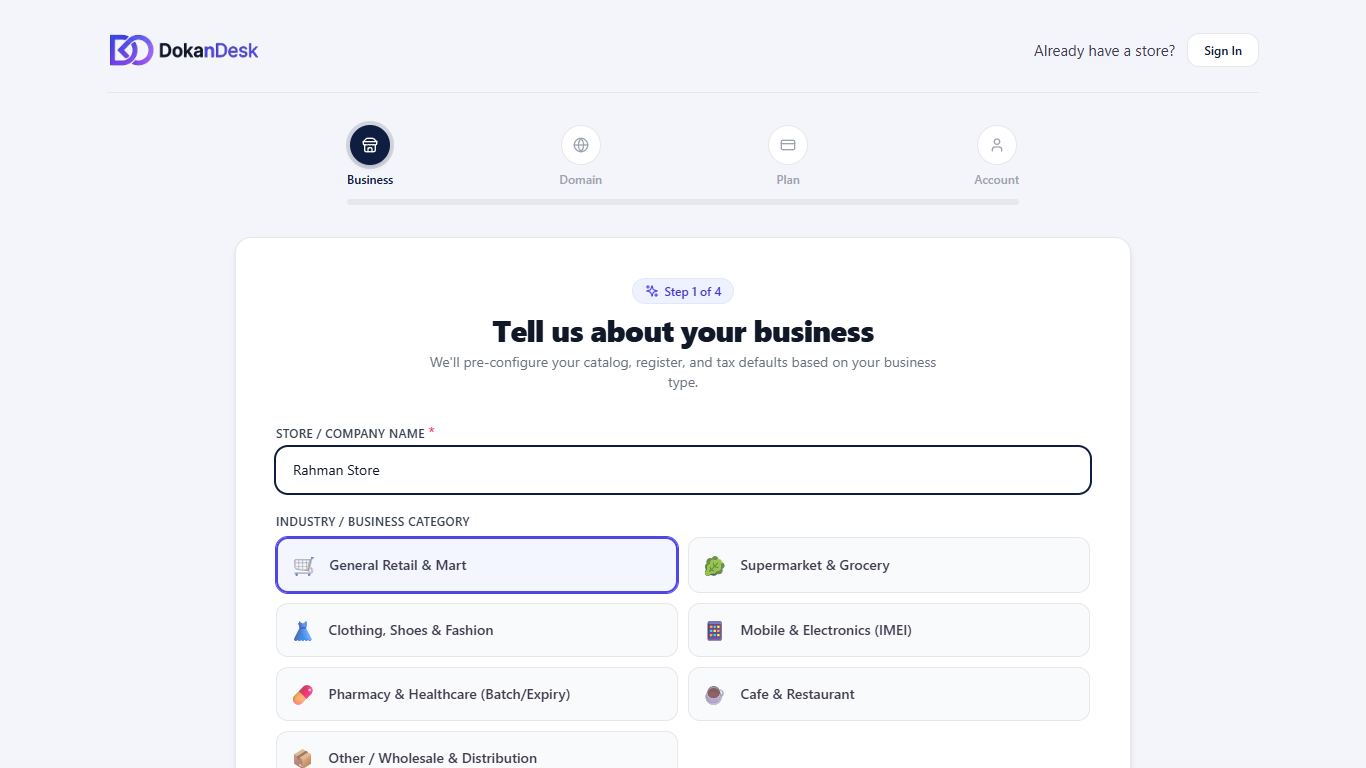
Tell us about your business
Go to dokandesk.com and choose to open a shop. Enter your Store / Company Name, pick your business category, and check the currency, country and timezone. Then click Next: Setup Domain.
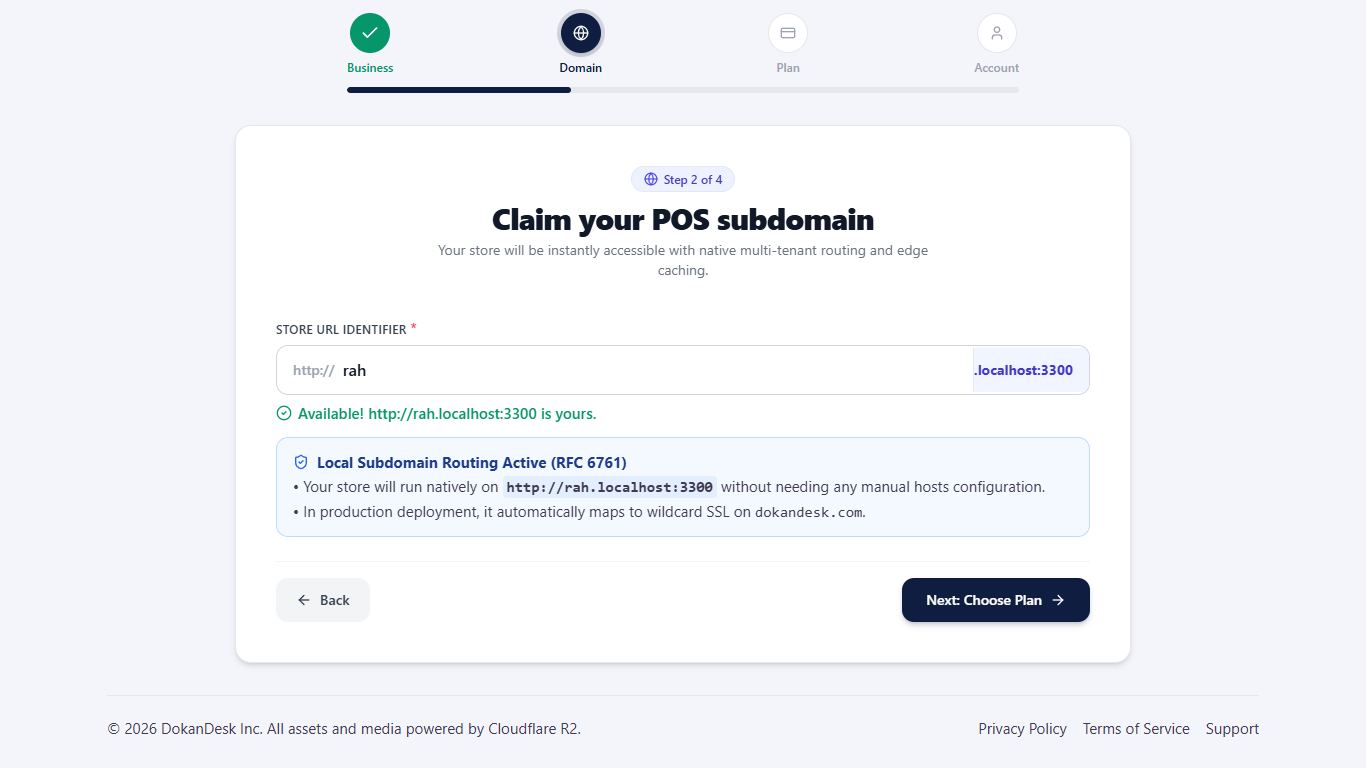
Choose your store address
DokanDesk suggests an address from your shop's name. Change it if you like, using small letters, numbers and hyphens. When you see Available!, click Next: Choose Plan.
Pick a plan
Click Choose Plan on the plan you want, then Next: Account Details. You can change plans at any time.
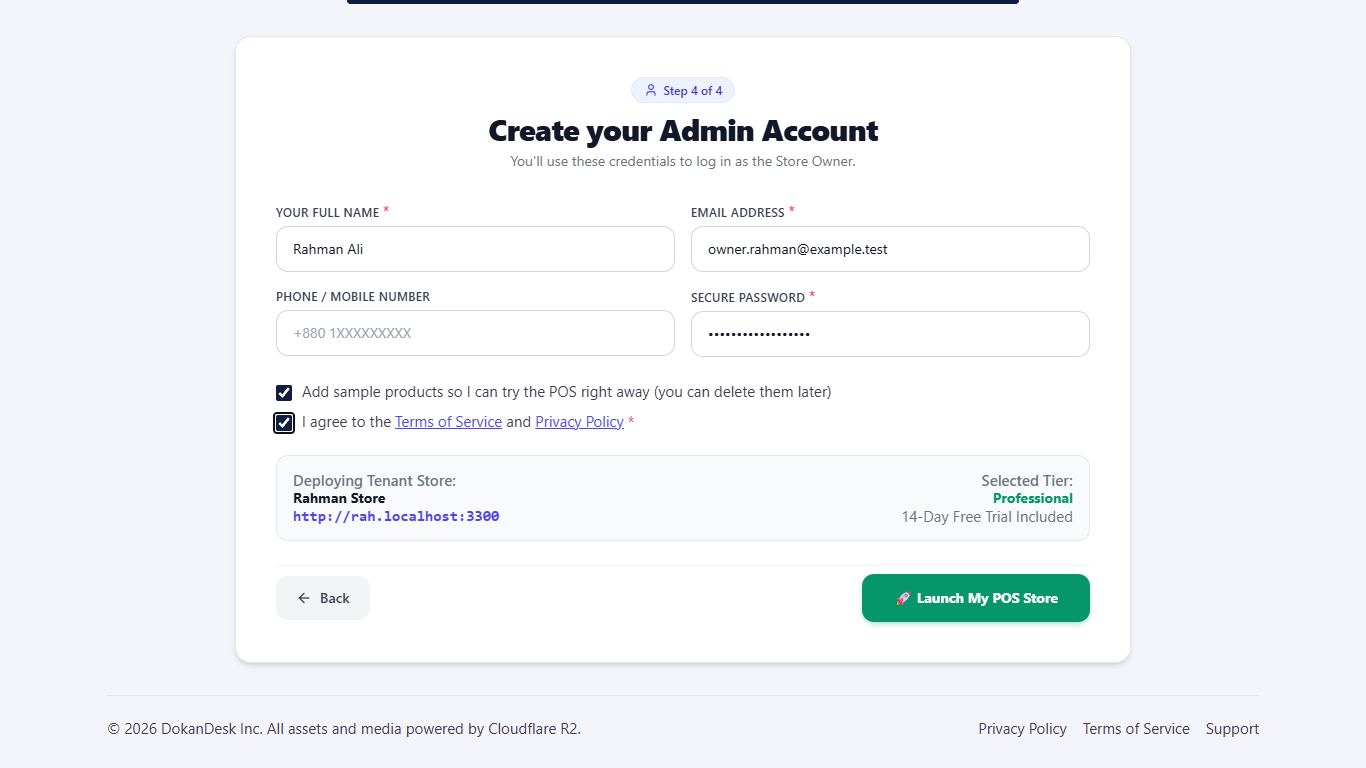
Create your account
Enter your name, email and a password of at least 8 characters. Tick the box to agree to the terms. Tick Add sample products if you want to try billing straight away. Then click Launch My POS Store.
Confirm your email
We send you a link when you sign up. Open it to confirm your address. If it doesn't arrive, click Resend email in the yellow bar on the dashboard.
Good to know
- You can delete the sample products later.
- No card is needed to start a free plan or a free trial.
Pictures come from a sample shop. Your screen may differ slightly depending on your plan and permissions.
Still stuck? Tell us what happened and we'll help. Contact us