
User Guide / POS and billing
Make a bill
Add products, choose a customer and take payment.
Add products
With a shift open, tap a product, scan its barcode, or type a name or SKU in the scan box and press Enter.
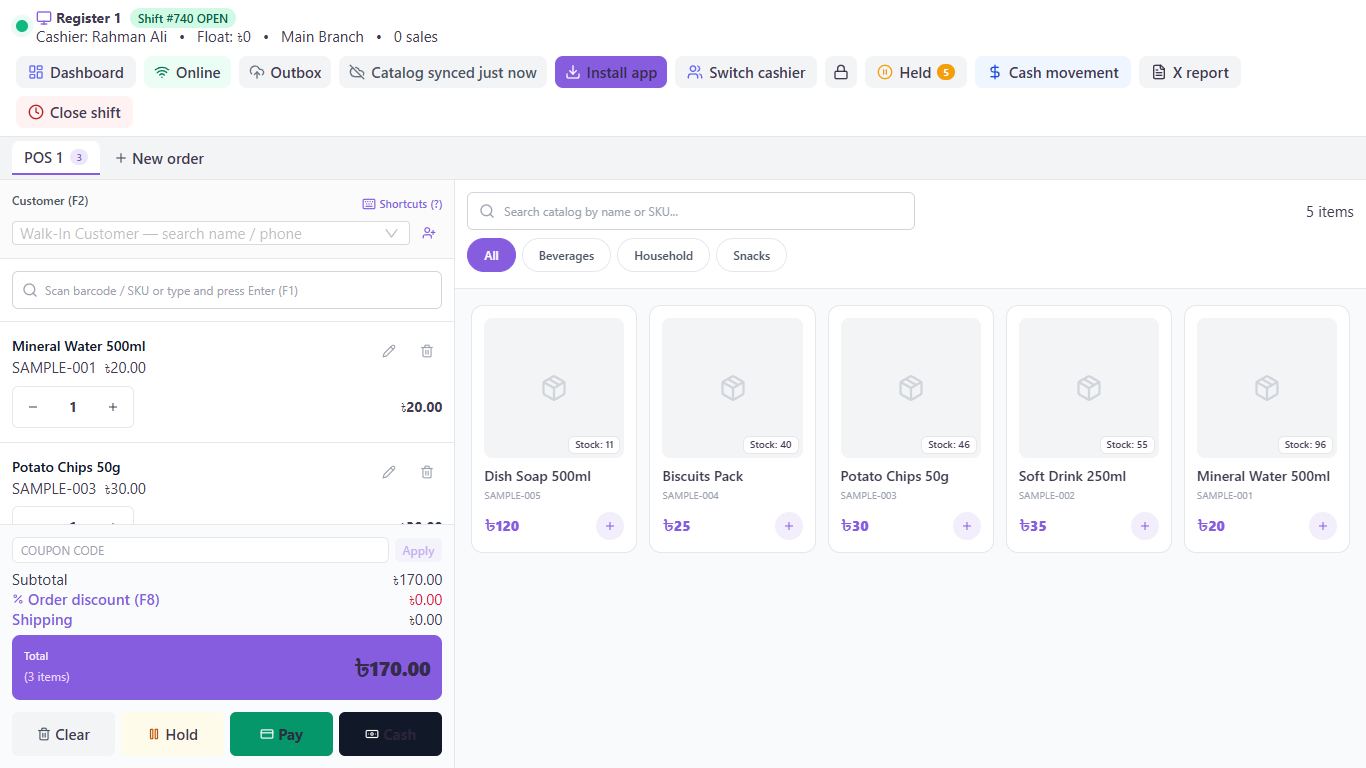
Change the quantity
Use - and + on the line, or tap the number to type it. The bin icon removes a line, and Clear empties the bill.
Choose a customer if you want
Search by name or phone in the Customer box. The icon beside it adds a new customer. Without a choice, it's a walk-in sale.
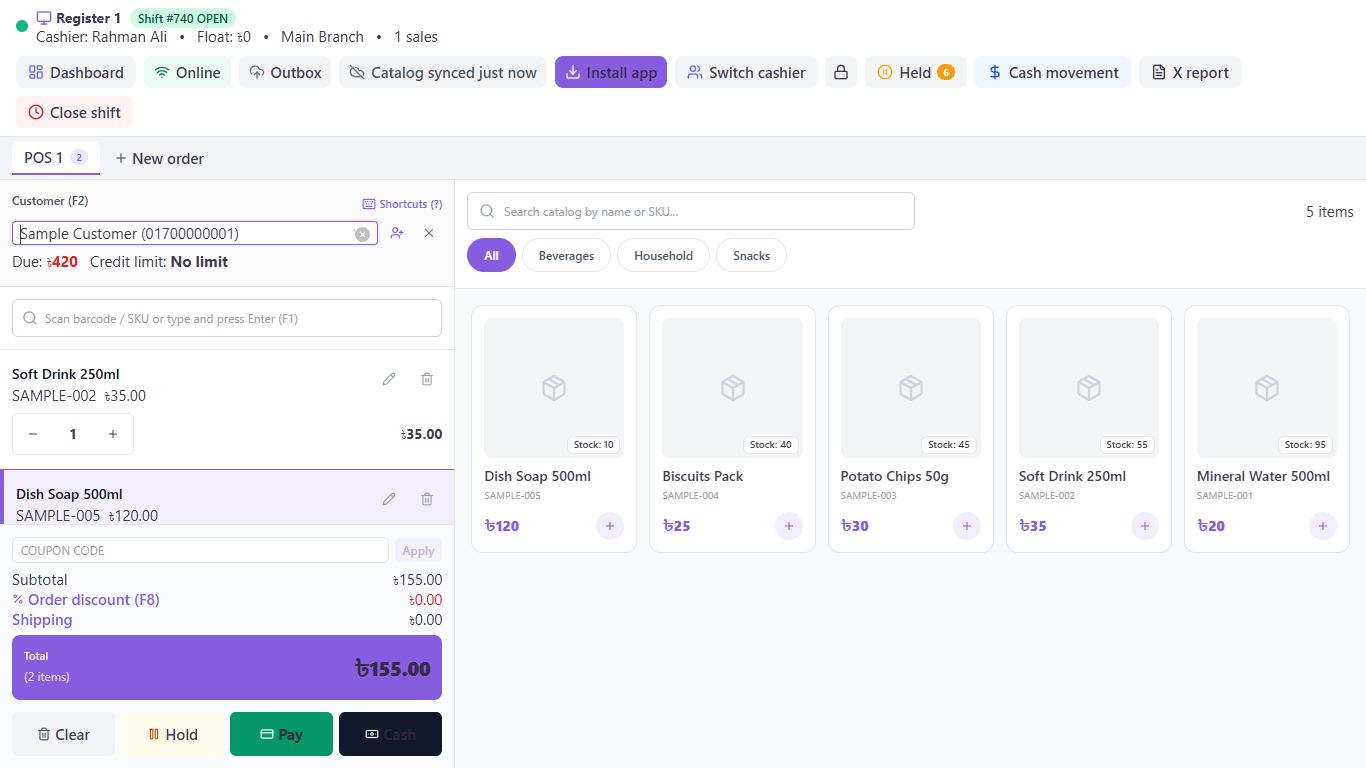
Serve someone else at the same time
Click New order to open another tab. Each tab keeps its own bill.
Take payment
Click Cash (F10) for exact cash with no extra screen, or Pay (F9) for any other payment.
Good to know
- To leave the POS, click Dashboard at the top.
- Clear doesn't ask before emptying the bill.
Pictures come from a sample shop. Your screen may differ slightly depending on your plan and permissions.
Still stuck? Tell us what happened and we'll help. Contact us