
User Guide / POS and billing
Returns, exchanges and voids
Take goods back, swap them, or cancel a sale.
Find the sale
These aren't done from the POS. Go to Sells, then All Sells, search by invoice, customer or phone, and open the sale.
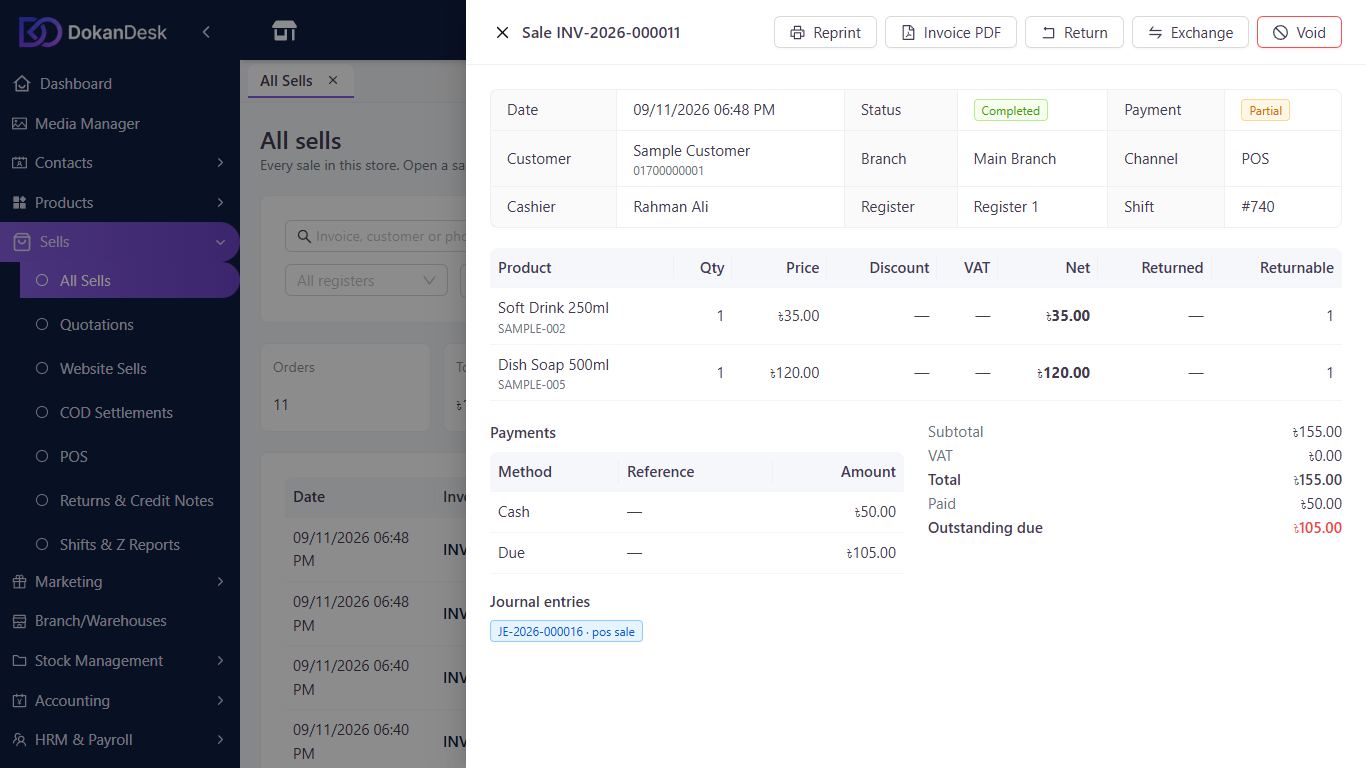
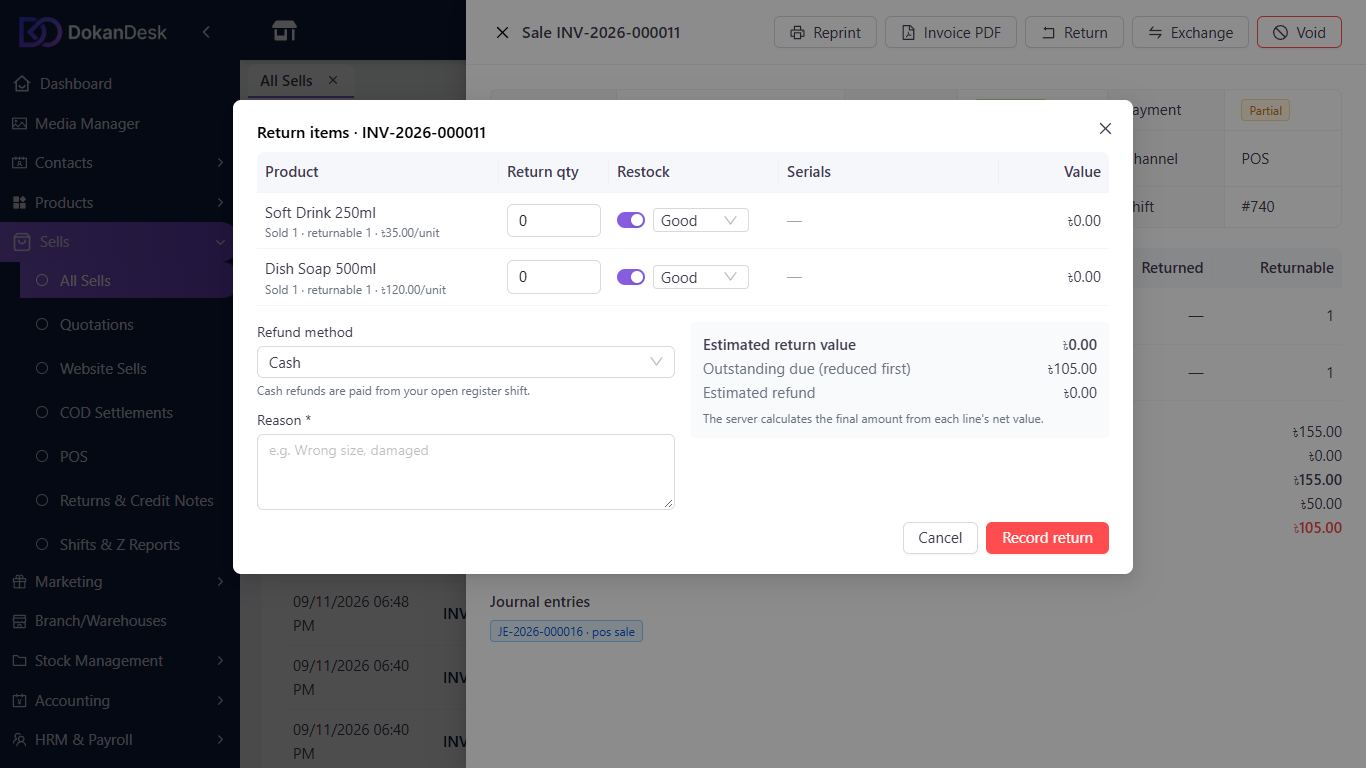
Return items
Click Return. Enter the Return qty, say whether it goes back to stock, choose the Refund method, write a Reason and click Record return.
Exchange items
Click Exchange. Choose the items coming back and the new ones. Take or refund the difference, then click Complete exchange.
Cancel a sale
Click Void, write the Reason and click Void sale. Only a completed sale with no returns can be voided.
Return without an invoice
Go to Sells, then Returns & Credit Notes, and click Receipt-less return. This always needs a manager's PIN.
Find the credit note
Every return makes a credit note (Mushak-6.7). Open it under Sells, then Returns & Credit Notes, and click Print (A4).
Good to know
- After the Return window (days) in your settings, a return needs a manager's PIN. The default is 7 days.
- A cash refund comes out of the drawer, so a shift must be open.
- Return and Exchange need the refund permission, which the Cashier role doesn't have by default.
Pictures come from a sample shop. Your screen may differ slightly depending on your plan and permissions.
Still stuck? Tell us what happened and we'll help. Contact us