
User Guide / POS and billing
Sell on due and collect it
Give credit to a known customer and record what they pay later.
Choose the customer
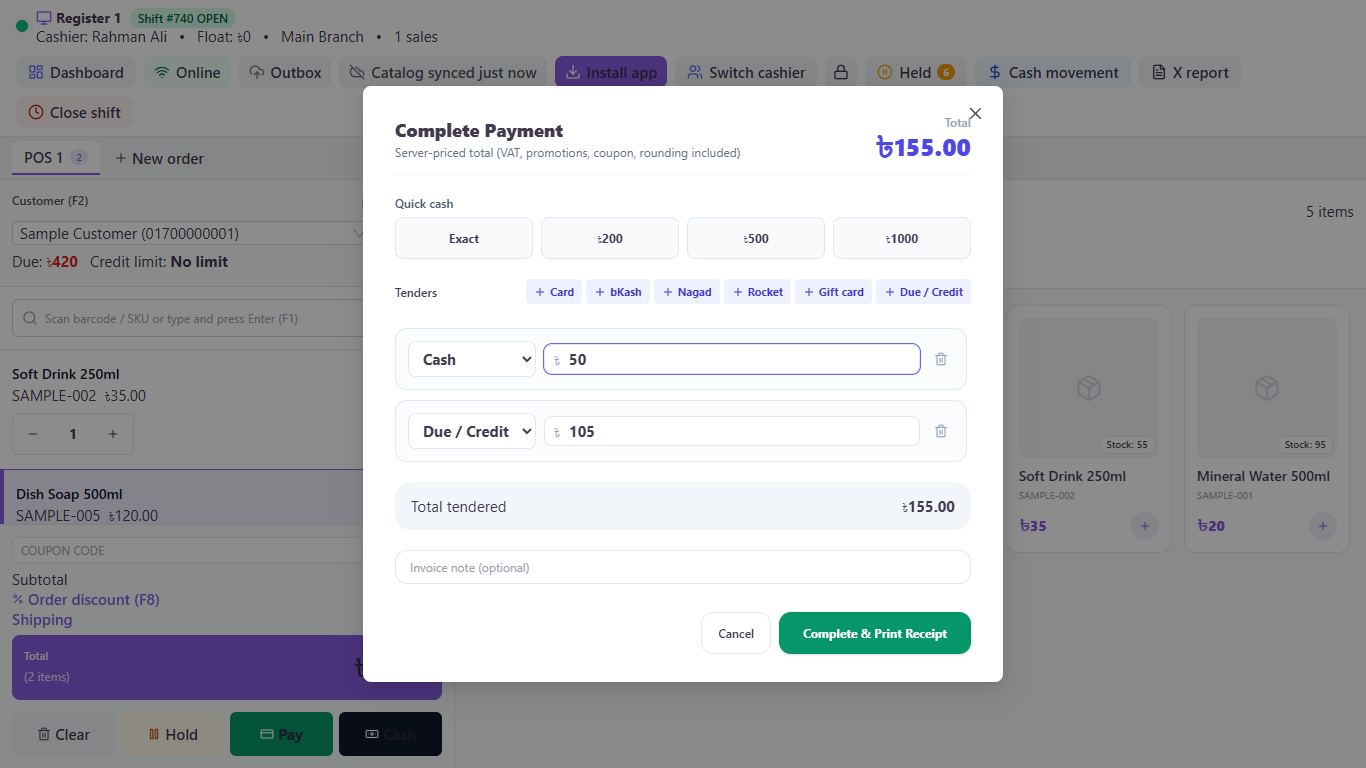
Select a saved customer in the POS. You'll see their Due and Credit limit. A walk-in customer can't buy on due.
Record what's paid now
Click Pay. Change the amount to what they're paying today, even zero, then click Due / Credit.
Finish
Click Complete & Print Receipt. The receipt shows what's still due.
Set a limit
Under Contacts, then Customers, edit the customer and fill in Credit limit. Leave it blank for no limit.
Collect the money later
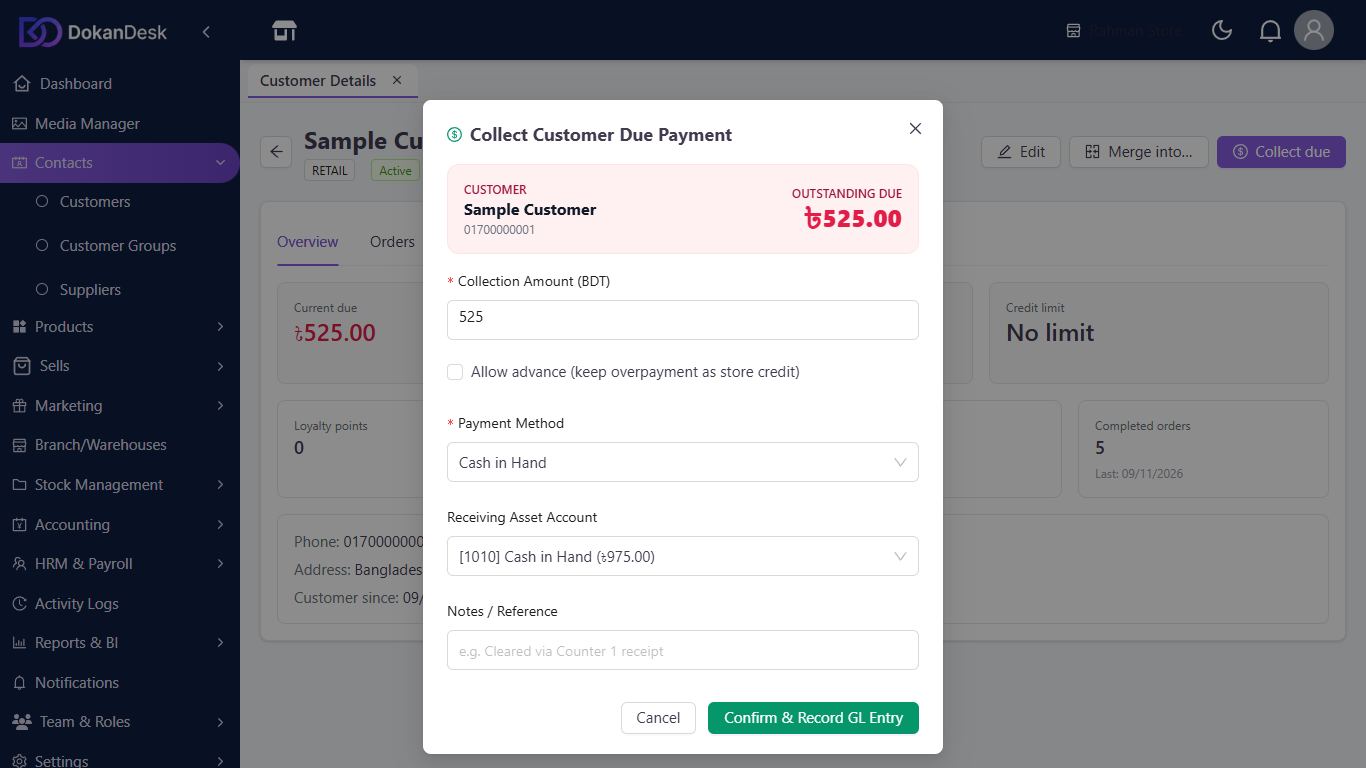
Open the customer under Contacts, then Customers, and click Collect due. Enter the amount and payment method, then click Confirm & Record GL Entry.
Good to know
- A sale above the customer's limit is refused, and the message shows the limit and the amount owed.
- Collecting dues needs its own permission, which the Cashier role doesn't have by default.
Pictures come from a sample shop. Your screen may differ slightly depending on your plan and permissions.
Still stuck? Tell us what happened and we'll help. Contact us