
User Guide / POS and billing
Take bKash, Nagad and Rocket
Record a mobile payment with its transaction ID.
Add the payment
In the payment window, click bKash, Nagad or Rocket, and check the amount.
Enter the transaction ID
Check the customer's payment message and type the ID into the box marked trxId. It prints on the receipt.
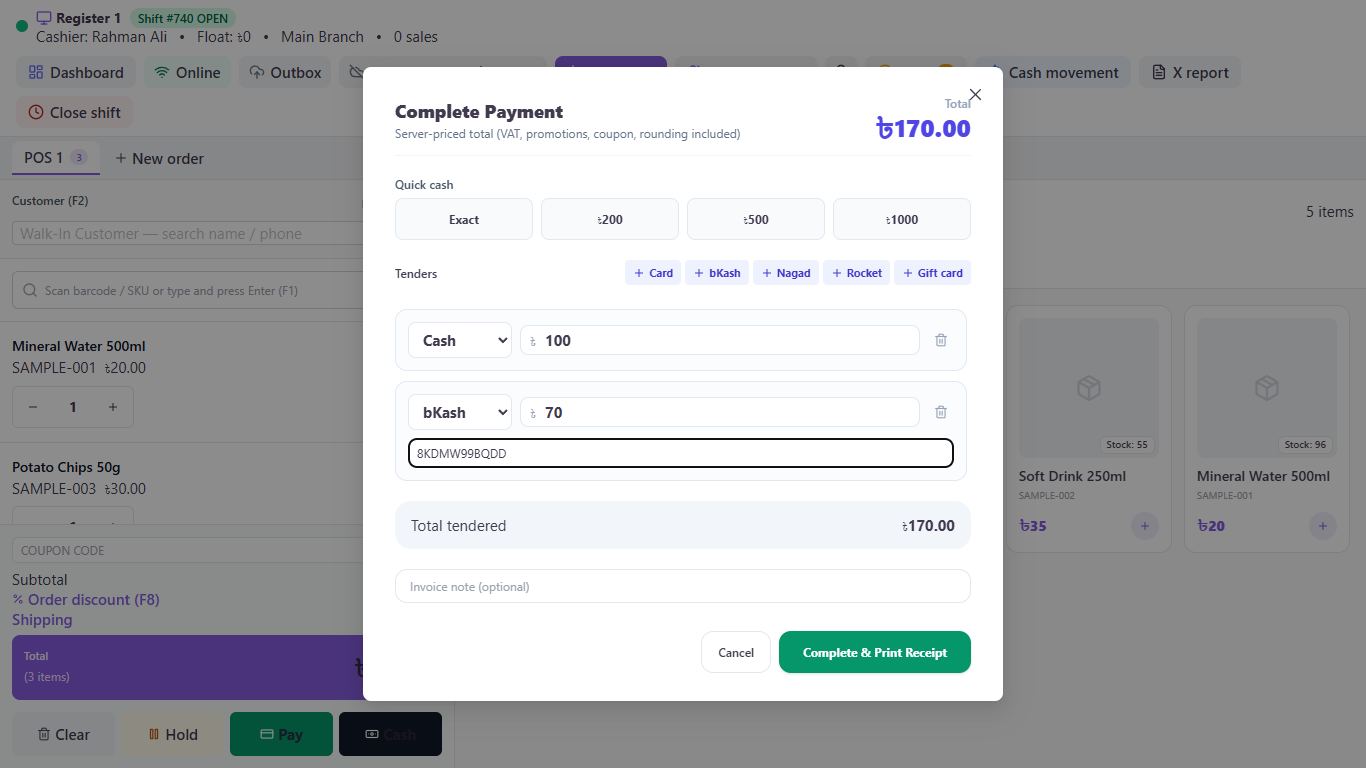
Finish the sale
Click Complete & Print Receipt. The payment goes to your mobile banking account in the books.
Match the total at closing
When you close the shift, enter your bKash and Nagad totals under Other tenders. Any difference shows there.
Good to know
- DokanDesk doesn't confirm payments with bKash, Nagad or Rocket. Always check the customer's message or your account first.
- An ID must be 4 to 64 letters or numbers, and can't be used twice for the same method.
- Owners can turn off Require wallet transaction ID on the POS settings tab. It's always needed when selling offline.
Pictures come from a sample shop. Your screen may differ slightly depending on your plan and permissions.
Still stuck? Tell us what happened and we'll help. Contact us