
User Guide / POS and billing
Open and close a shift
Count your cash in, record cash movements and close the day.
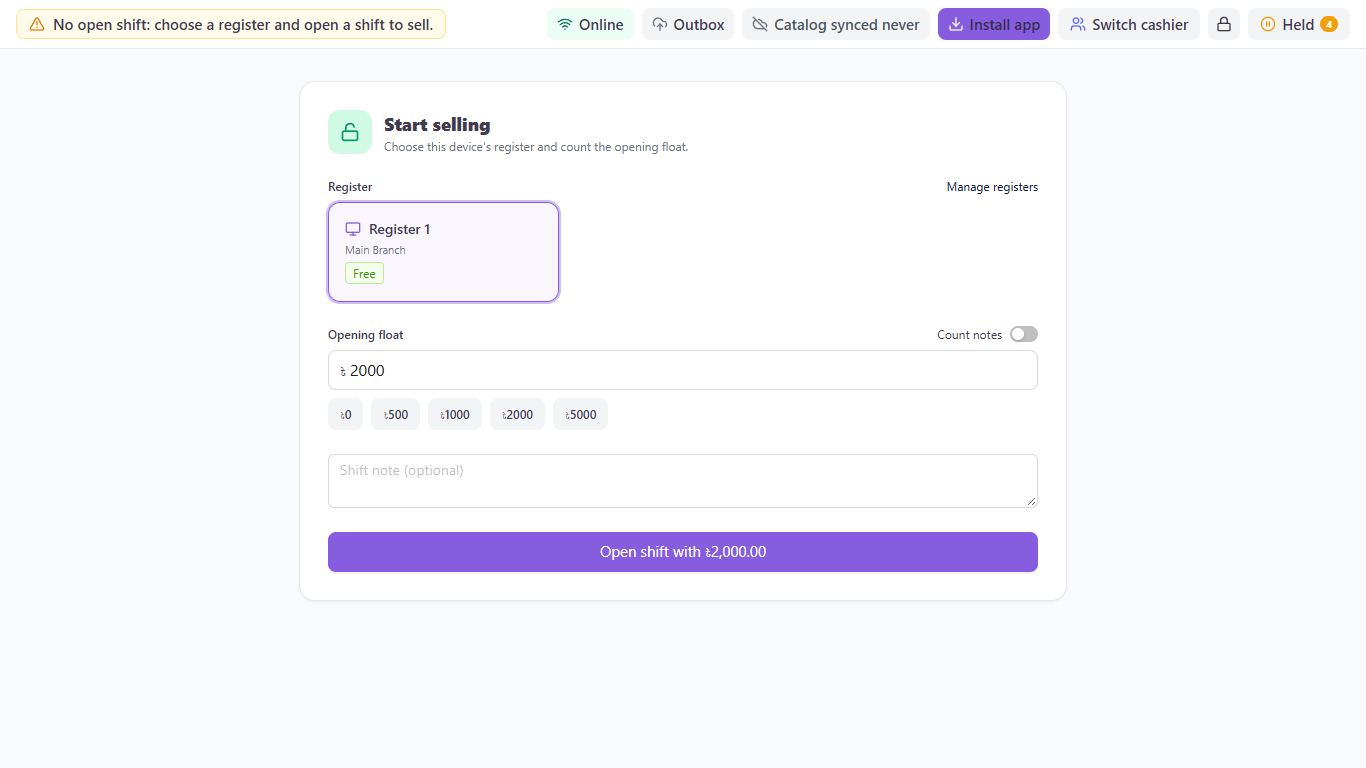
Open the shift
Go to Sells, then POS. Choose the Register, enter the Opening float or use Count notes, then click Open shift with.
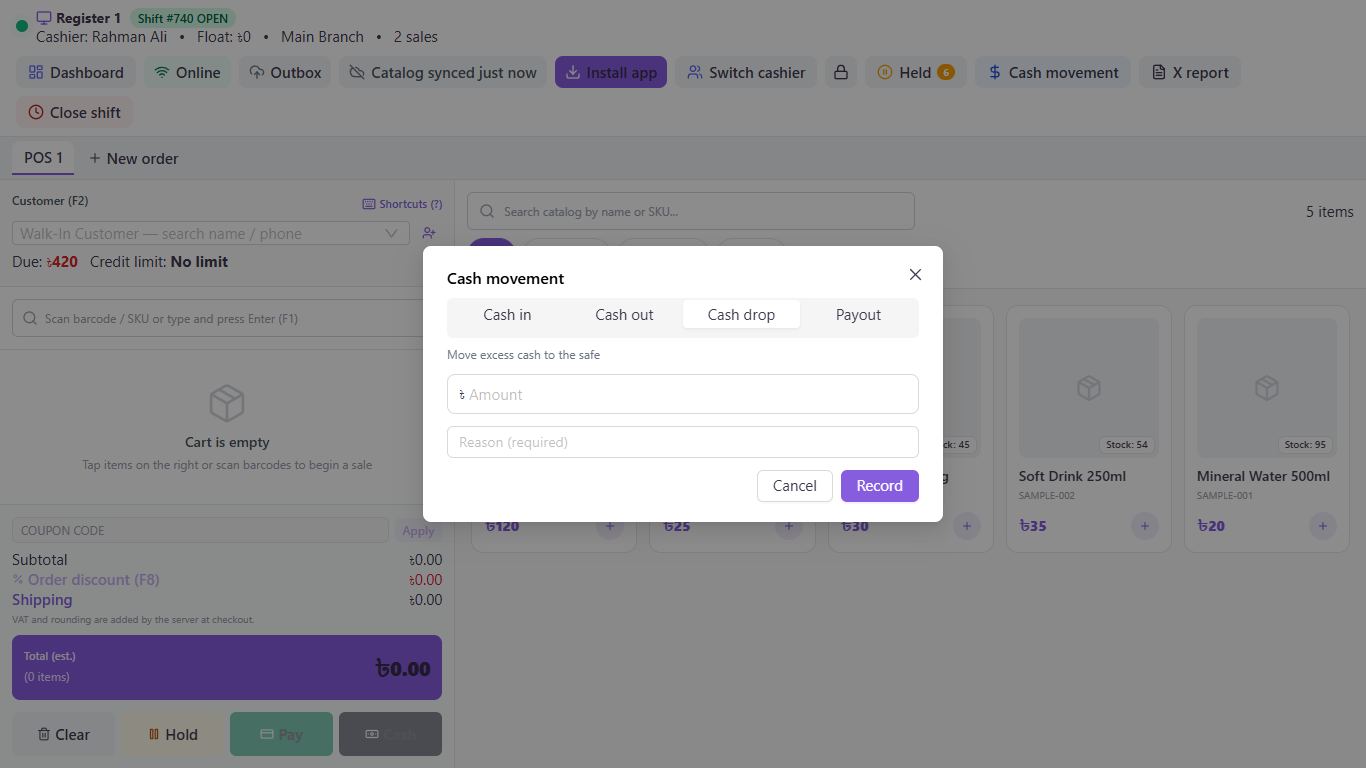
Record cash going in or out
Click Cash movement and choose Cash in, Cash out, Cash drop or Payout. Enter the Amount and a reason, and click Record.
Check progress with an X report
Click X report at any time to see the shift's figures without closing it.
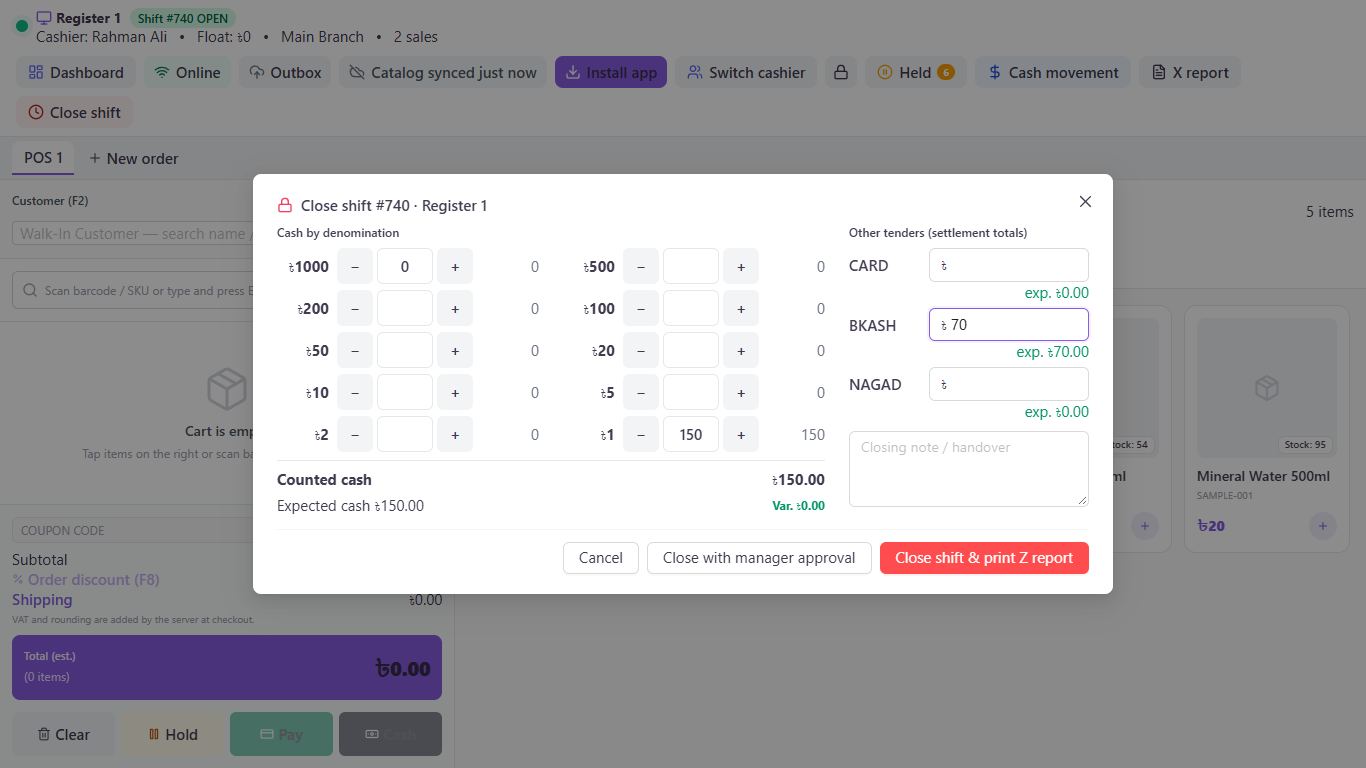
Count and close
Click Close shift. Enter how many of each note you have under Cash by denomination, and your card, bKash and Nagad totals under Other tenders. Then click Close shift & print Z report.
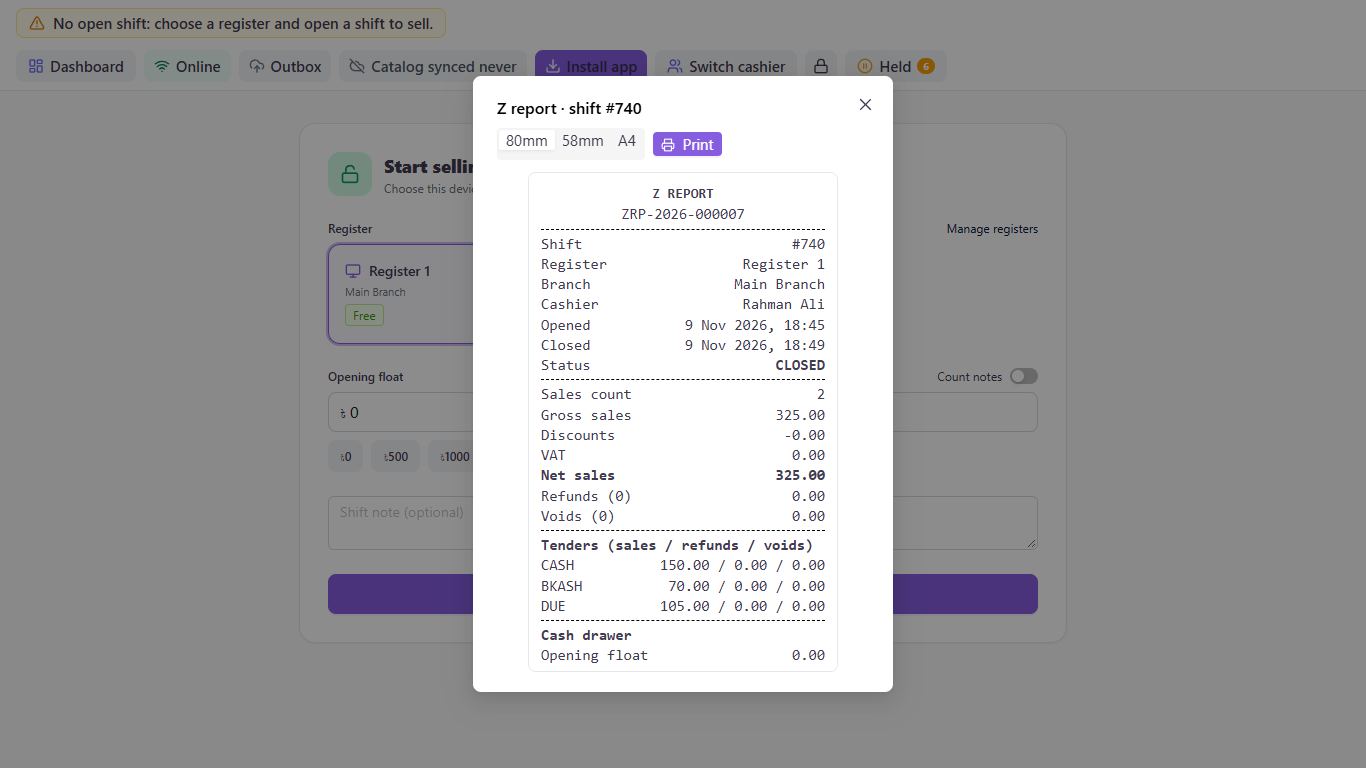
Print the Z report
The Z report opens after closing. Choose the paper size and click Print.
See past shifts
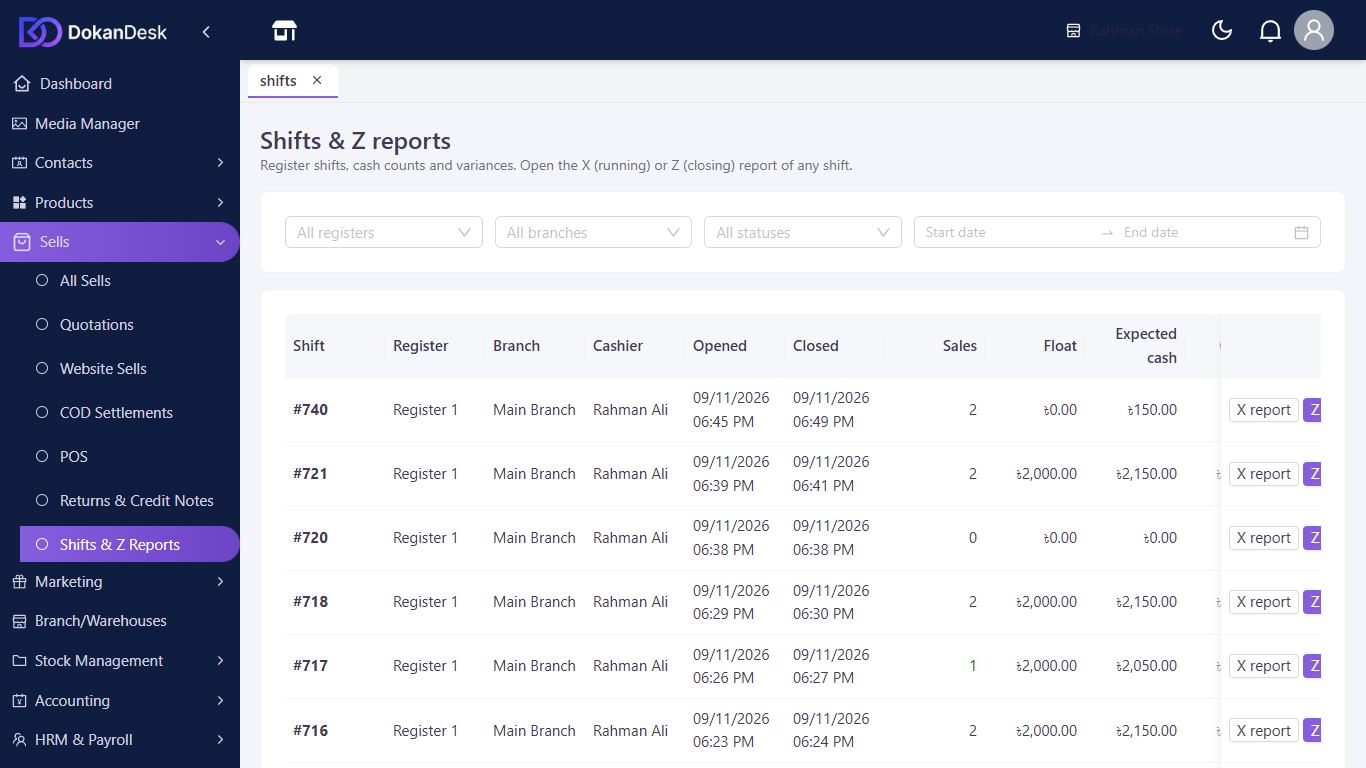
Go to Sells, then Shifts & Z Reports for every shift, its variance and its reports.
Good to know
- Enter your count before closing. If you leave it empty, DokanDesk asks whether to close with zero cash.
- A difference above Max shift cash variance flags the shift CLOSED WITH VARIANCE unless a manager approves it.
- Use Close with manager approval to have a manager approve a difference with their PIN.
- Cashiers without the register permission count blind. The expected amount shows on the Z report.
- Sales made offline must sync before you can close.
Pictures come from a sample shop. Your screen may differ slightly depending on your plan and permissions.
Still stuck? Tell us what happened and we'll help. Contact us