
User Guide / POS and billing
Take several payments on one bill
Mix cash, card, mobile payments and more.
Open payment
Click Pay or press F9. The bill starts with the full amount in cash.
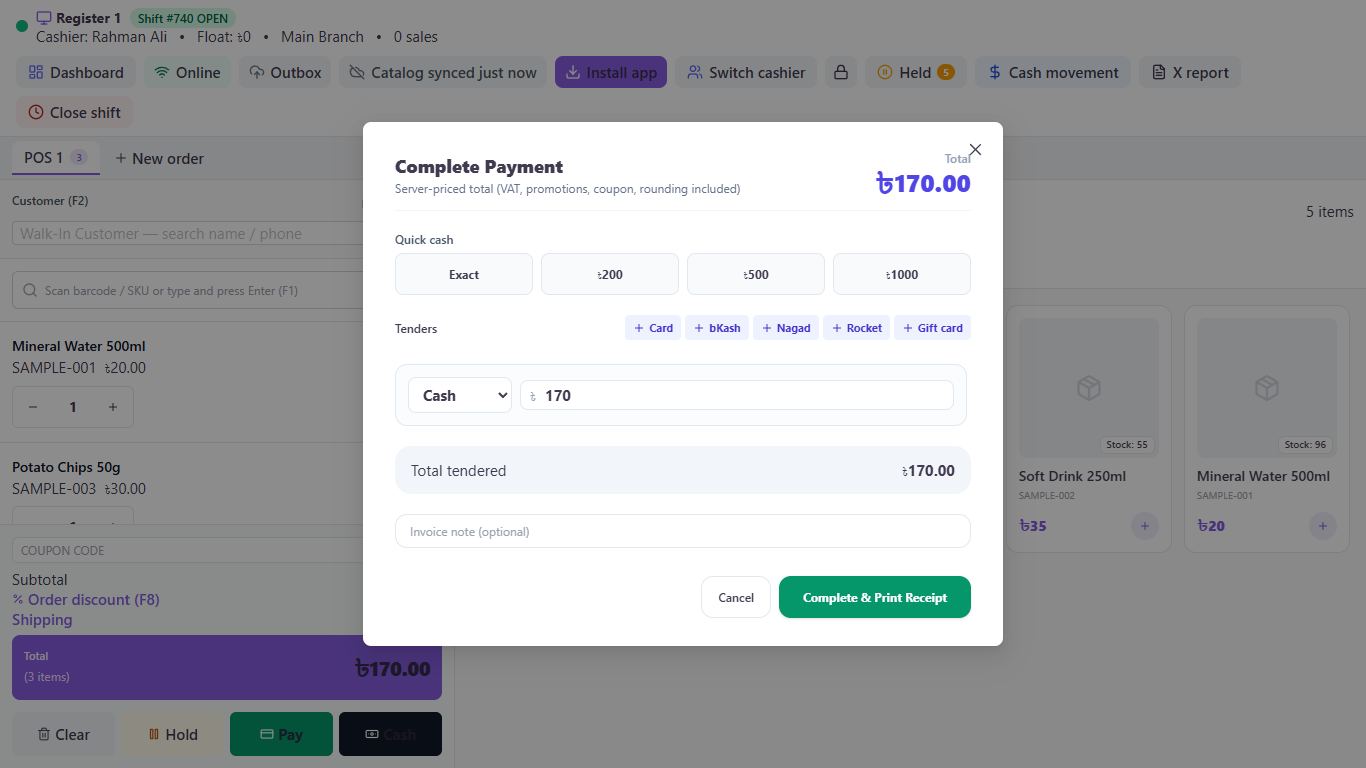
Change the cash amount
Type what the customer is paying in cash, or use a Quick cash button.
Add the other payment
Click Card, bKash, Nagad, Rocket or Gift card. Loyalty points, Due / Credit and Store credit appear when the customer can use them. The new line fills in what's left to pay.
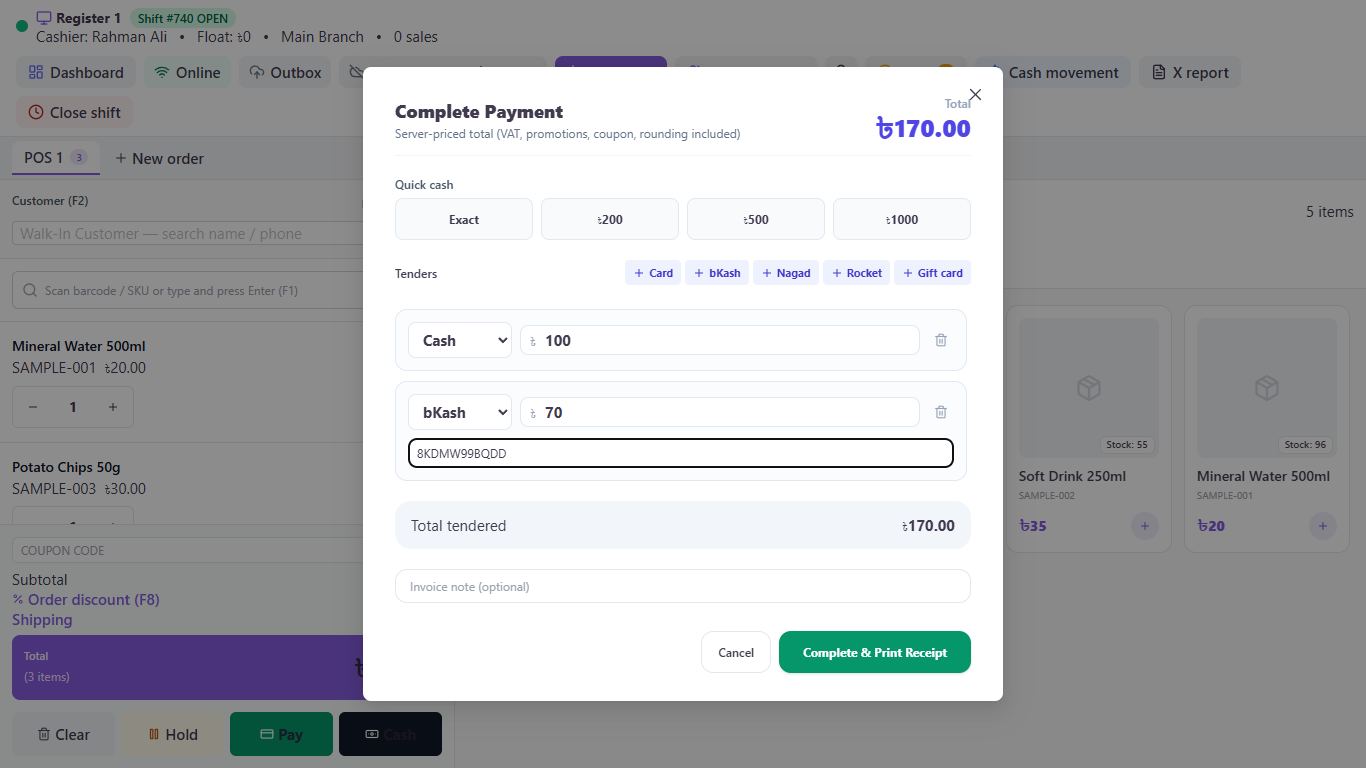
Check the total
Change in green is what to give back. Balance remaining means the payments don't cover the bill yet.
Finish
Click Complete & Print Receipt.
Good to know
- You can't finish while the payments fall short, unless you add a Due / Credit line.
- Change can only be given from cash.
Pictures come from a sample shop. Your screen may differ slightly depending on your plan and permissions.
Still stuck? Tell us what happened and we'll help. Contact us